English
 Arabic
 French
 Spanish
 Portuguese
 Deutsch
 Turkish
 Dutch
Dutch
 Italiano
 Russian
 Romaian
 Portuguese (Brazil)
 Greek
Greek
Female Partners Can Give Nice Night Life in Clubs
Other |
2026-04-28 11:14:51
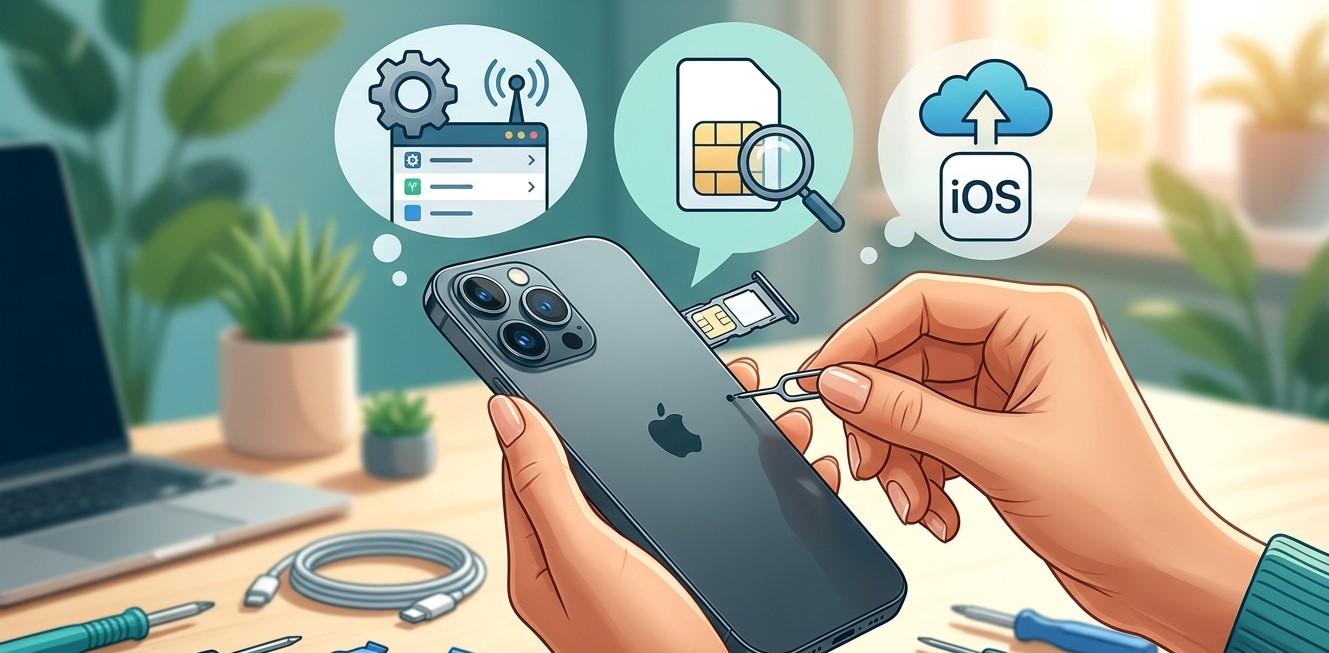
An iPhone that suddenly stops recognizing a SIM card can prevent you from making calls, sending traditional text messages, or using cellular data. You may see messages such as “No SIM,” “Invalid SIM,” or “No Service,” even though the SIM card worked normally before. This can happen because of a misplaced SIM card, dirty contacts, network settings, carrier problems, software issues, or damage to the SIM tray or internal components.
Fortunately, many SIM-related problems can be resolved with a few basic troubleshooting steps. However, if your iPhone still cannot recognize a SIM card after trying these solutions, professional iPhone repair Brooklyn NY can help identify whether the problem is related to the device's hardware. Avenue D Cellular provides professional iPhone diagnostics and repair services, including connectivity troubleshooting, charging repairs, battery replacement, and iPhone screen repair Brooklyn.
When an iPhone displays a “No SIM” or similar message, it means the device isn't properly detecting or communicating with the SIM card.
Possible causes include:
The first step is determining whether the problem is with the SIM card, cellular network, or iPhone itself.
A simple restart should be your first troubleshooting step.
Temporary software glitches can interfere with cellular communication and SIM detection. Turn your iPhone off, wait a few seconds, and turn it back on.
After restarting, wait for the device to reconnect to the cellular network.
If the SIM is recognized normally after the restart, the issue may have been temporary.
If the “No SIM” message returns, continue troubleshooting.
Airplane Mode can refresh your iPhone's wireless connections.
Enable Airplane Mode, wait approximately 10–15 seconds, and then disable it.
Give the iPhone a moment to reconnect to the cellular network.
This simple step can sometimes resolve temporary network communication problems without changing other settings.
If your iPhone uses a physical SIM card, turn the device off and carefully remove the SIM tray using the appropriate tool.
Check that the SIM card is positioned correctly in the tray.
Inspect the card for visible damage, scratches, or contamination.
Then carefully place it back into the tray and insert the tray completely.
Turn the iPhone on and check whether the SIM is recognized.
Avoid forcing the SIM tray into the device because improper insertion can damage the tray or internal components.
A SIM card can become damaged through normal use, physical bending, or contact problems.
If possible, test the SIM card in another compatible phone.
If the other device also fails to recognize the SIM, the card may be defective.
Contact your carrier about obtaining a replacement SIM if necessary.
If the SIM works normally in another phone but isn't recognized by your iPhone, the iPhone may be responsible.
Carrier settings help your iPhone communicate correctly with your mobile network.
Sometimes an available carrier update can improve network connectivity or resolve compatibility problems.
Check your iPhone's settings for available carrier updates.
If an update is offered, install it and then restart the device if necessary.
Keeping carrier settings current can help maintain reliable cellular communication.
Review your cellular settings to make sure the appropriate mobile line is enabled.
If your iPhone uses multiple cellular lines, verify that the correct line is active.
Also check whether cellular data is enabled when you're trying to access mobile internet.
If your carrier recently changed your plan, SIM, or account, contact the carrier to confirm that the service is properly activated.
If your iPhone continues having cellular problems, resetting network settings may help.
This restores network-related configurations and can resolve problems caused by corrupted or incorrect settings.
However, resetting network settings can remove saved Wi-Fi networks and passwords along with other network configurations.
Make sure you know important Wi-Fi passwords before performing the reset.
Afterward, reconnect to Wi-Fi and check whether the SIM and cellular connection are working normally.
An outdated version of iOS can sometimes cause connectivity or compatibility issues.
Check whether an appropriate software update is available for your iPhone.
Keeping the operating system updated can provide bug fixes and improvements that may resolve cellular problems.
If the SIM issue began immediately after a software change, monitor the device after updating and restarting it.
Sometimes the iPhone isn't the problem.
A temporary carrier outage can cause loss of service, even when the SIM card and device are functioning correctly.
Check whether other customers using the same carrier are experiencing similar problems.
You can also contact your carrier to verify that your account is active and that there are no network or service restrictions affecting your line.
If possible, test your iPhone with another compatible SIM card.
This can help determine whether the original SIM or the iPhone is responsible.
If another SIM works correctly, your original SIM may need replacement.
If the iPhone fails to recognize multiple working SIM cards, the problem may involve the SIM reader, tray, or another internal component.
If the SIM problem started after dropping your iPhone or exposing it to liquid, hardware damage may be involved.
The SIM reader and related internal components can potentially be affected by impact or moisture.
Look for additional symptoms such as:
If multiple features stopped working after an accident, professional iPhone repair Brooklyn NY is recommended.
Consider professional repair if:
A technician can inspect the SIM reader, internal connections, and other relevant components to determine the cause.
If your device also has display damage, professional iPhone screen repair Brooklyn may be necessary.
You can take several precautions to reduce the risk of SIM-related issues.
Handle the SIM tray carefully and avoid removing the SIM unnecessarily. Keep your iPhone protected from drops and moisture.
Keep iOS and carrier settings updated when appropriate.
If you're switching carriers or SIM cards, follow the carrier's installation and activation instructions carefully.
Regularly backing up your iPhone is also important in case a serious hardware or software problem occurs.
If you're searching for dependable iPhone repair Brooklyn NY, Avenue D Cellular provides professional diagnostic and repair services for a variety of iPhone problems.
Services can include:
Professional inspection can help determine whether your SIM problem is caused by the SIM card, network configuration, software, or internal hardware.
An iPhone that won't recognize a SIM card can be caused by something simple, such as incorrect installation, a temporary software glitch, or a damaged SIM card. Start by restarting your iPhone, toggling Airplane Mode, checking the SIM card, and confirming that your carrier service is active.
If the problem continues, test another compatible SIM card and review your network settings. These steps can help determine whether the issue comes from the SIM, carrier, or iPhone itself.
If multiple SIM cards fail to work or the problem began after physical or liquid damage, professional diagnosis is recommended.
For reliable iPhone repair Brooklyn NY, Avenue D Cellular provides professional diagnostics and repair services for cellular connectivity, batteries, charging ports, displays, and other components. Whether you need help with a SIM detection problem or iPhone screen repair Brooklyn, addressing persistent issues early can help keep your device reliable and functional.